Security gate
The security gate compares scan results with your organization’s security policy and returns Pass, Warning, or Fail to support release decisions.
Instead of failing whenever any vulnerability exists, it can evaluate changes from the previous successful scan and the expiration of risk exceptions.
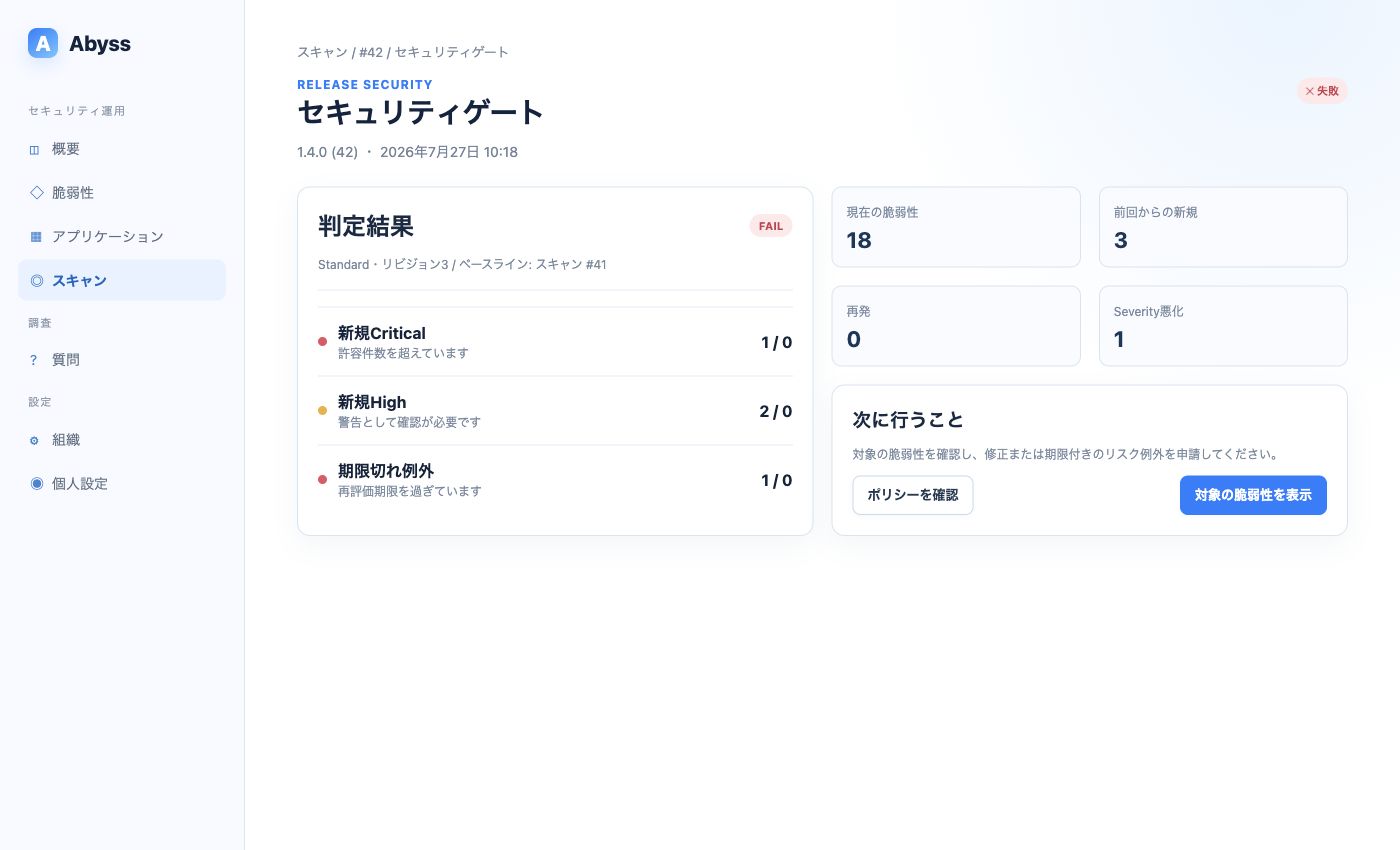
Review the decision, applied policy, and criteria that were exceeded.
Decision meanings
Section titled “Decision meanings”| Decision | Meaning | Recommended action |
|---|---|---|
| Pass | Within the limits of the active policy | Continue the normal release process |
| Warning | A warning condition was met | Review the reason and have an owner decide whether to release |
| Fail | A failure condition was met, or analysis is incomplete | Fix and rescan, or obtain an approved exception |
Evaluated conditions
Section titled “Evaluated conditions”- Current Critical and High vulnerabilities
- New Critical and High vulnerabilities not present in prior scans
- Critical and High vulnerabilities that recur after being resolved
- Vulnerabilities whose severity increased from the previous scan
- Expired risk exceptions
- Incomplete analysis caused by iOS or Android failures or unresolved static-check candidates
Count rules are triggered when the result exceeds the maximum allowed count. For example, when the maximum is 0, one or more matching vulnerabilities trigger a warning or failure.
Comparison with the previous scan
Section titled “Comparison with the previous scan”The baseline is the previous scan of the same application in which at least one platform succeeded.
- New: Not present in the baseline or any earlier history
- Ongoing: Still detected from the baseline
- Recurring: Resolved in the baseline but present in earlier history
- Resolved: Present in the baseline but not detected now
Because the first scan has no baseline, current vulnerabilities are treated as new.
Choose a policy
Section titled “Choose a policy”Organization administrators configure security policies under Organization → General.
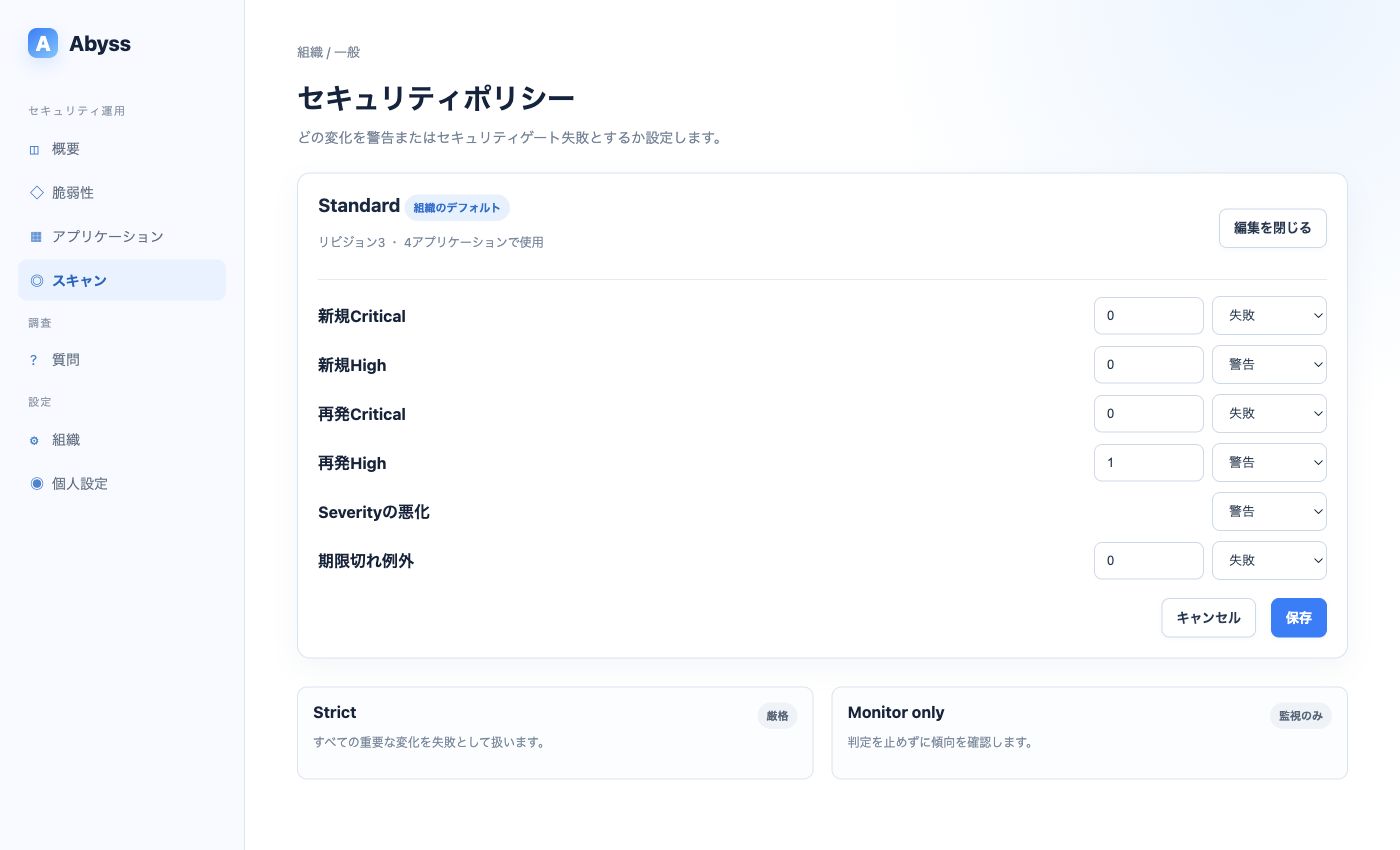
Set an organization default, then switch individual applications to another policy when necessary.
- Start with the Standard preset as the organization default.
- Select Strict when an application requires stricter release criteria.
- Create a custom policy from a preset when you need organization-specific criteria.
- Review several scan results before tuning maximum counts and decisions.
| Preset | Best for |
|---|---|
| Strict | Blocking releases for Critical or High issues and severity increases |
| Standard | Failing on Critical issues while introducing warnings for High issues and increases |
| Monitor only | Observing decision trends before allowing the gate to block releases |
Updating a policy creates a new revision. Each scan retains the policy and revision used for evaluation, so you can later identify which criteria produced its decision.
When the gate fails
Section titled “When the gate fails”- Review the decision reason and affected count.
- Open each vulnerability and examine its evidence and impact.
- If possible, fix it and scan a new binary.
- If there is a justified reason not to fix it, request a risk exception.
- If analysis is incomplete, correct the failed platform or static check and scan again.
Approving an exception does not rewrite previous scan decisions. The next scan is evaluated again.